Showing posts with label Calendar. Show all posts

11/25/2011

Calendar Options

There is still plenty of time to create a calendar for yourself or for a gift.  The ordering deadline for 2011 is December 13 to insure delivery by Christmas.

You can choose from a variety of pre-designed templates or create your own pages from scratch.  If you prefer the simple style there is a new FREE pre-designed block style collage calendar available here for download.   This template is for the PC only.  But you can find other FREE templates for both PC and Mac here for download.

If you need help creating your calendar you can watch a video that walks you through the process using StoryBook Creator Plus here and using sbcStudio here.  I am also always available to answer your questions.  

The new desk calendar at just $14.99 makes a great gift for hostesses, co-workers, teachers, grab-bags, or anyone on your gift list.  You can watch a You Tube Video on creating this new calendar with StoryBook Creator Plus  here and with sbcStudio here.

Do you have a family with an extra busy schedule and need more room than is available in the traditional calendar format to write down appointments, practices, etc.?  You can choose to reverse the calendar so the date portion is on the top 12x12 section and your photos are on the bottom 8x12 section.  It's very easy and I will show you the steps to follow here.

  • First download the 2012 Calendar 12x18 Digital Blank Pages here.
  • Create a new project and choose the the 2012 Calendar 12x18 Digital Blank Pages
  • From the Insert Tab Choose Calendar and size the calendar to your desired size on the top portion of the calendar.  Be sure to work in the Trimmed View so your dates are not too close to the edges.


  • You can then right click on the new calendar you added under the elements list and choose Calendar Style to change the style of the calendar. There are several to choose from.

  • Once you have selected your calendar style you can then customize the design by right clicking on the calendar in the elements pane again and this time choosing Format Calendar.  You can then go through all of the choices on the left and totally customize your calendar.


  • Once you have the calendar set how you like you right click on the calendar in the elements pane again and choose Calendar Style and Make Default Calendar Style.  Now when you add a calendar to the top portion of the remainder of your pages it will automatically be formatted in your design of choice.  You will just need to go to Format Calendar and change the month for each page.
  • After you have the calendar set up you just go to the Elements Pane on the left and click on the eyeball to the left of the original calendar (Bottom of list).  This will hide that calendar and you can then add photos to the lower section. 


  • Voila!  You now have a calendar that is truly your own with plenty of space to write all your important dates.

Please let me know if I can help you in any way with your precious photos.

Memories are the most precious gift of all.

10/28/2011

Alternative Uses for Creative Memories Calendars

I am sorry I haven’t updated this blog lately. As many of you know my life has been a bit unsettled in the last 6 months. My Dad passed away in May and then my Mom had a major stroke just a few weeks later. This has only increased my passion for helping others to tell their stories. Life is fragile but there is a lot to celebrate. I will try to get on a more regular schedule for updating the blog.

Creative Memories 8x12 and 12x18 calendars are on sale for 20% off through the month of October. If you don’t have time to finish your calendar by Oct 31 you can always purchase a product credit at the sale price and order the calendar within the next 180 days.

In addition to the typical calendar many customers have found unique uses for our calendars. Since the calendars are printed on a digital press, as opposed to a photographic printing process, the text and photos are much crisper. This lends itself to many uses.

Instead of thinking in terms of a calendar think about what you could print on a 12x18 sheet of paper. Remember there is a perforation at the 12x12 mark so you are basically designing on a 12x12 and a 6x12 piece.

Some people like to print 12x12 page prints on the top then use the bottom for other options. Or you can use both the top and bottom section for various size items that you then cut apart.

Some Ideas:

• Recipe cards – you can get 6 4x6 cards on the top and 3 on the bottom for a total of 9 per page. You can print recipes with a much smaller font than you would be able to with a traditional photo

• Book marks – This is a great use for the bottom section if you do 12x12 prints on the top

• Gift Tags – if you make these 2x3 size you can get 24 on the top section and 12 on the bottom section.

• Print a large 11x14 photo and then cut it up to fit in a PicFolio Album.

• Place cards – the calendars are made on a nice heavy-weight paper so they fold in half and stand up quite nicely.

• Postcards – again a nice heavy weight for mailing. You can make a variety of different cards for sending throughout the year.

Each calendar page can be something completely different so you can do recipe cards on one and gift tags on another page and a page print on another page. The choice is yours.

Please share your own creative ideas for using the calendars.

12/06/2010

Adding calendar pages to a StoryBook

If you loved the pre-designed calendar pages and would like to use them in a StoryBook as well as in your calendars, I have good news. With a few simple steps you can do this in StoryBook Creator Plus. Here are the steps:


1. Create a 12x12 or 8x8 project with blank pages. You may already have one of these called Square Templates or 12x12 Templates. If so you can use this.

2. Create a 12x18 or 8x12 Calendar project using the free 2010 or 2011 templates. You now have two projects open.

3. Select the first page you want to save as a template to use in your StoryBook.

4. In the elements panel, unlock the background element – To do this select the bottom element (will have diagonal hash marks around it) – right click the unlocked background > select order from the pop up menu > select: make normal (not the background)

5. Now select any one element on the page and hold sown Ctrl while typing A (Control A)- this will select ALL the elements on the page

6. Now hold down the shift key and click on the calendar icon – this will deselect the calendar portion. Now everything in the elements list except the calendar should be selected and grey. You have the option to group them at this point or not, whatever is easiest for you.

7. Right Click & select Copy

8. Click on the album in the circle in the upper left corner

9. Choose your template project from the list on the right

10. Once you are in your template project select a blank page and right click and Paste (depending on the number of elements copied it will show up quickly or may take some time)

You now have the page template available to use in future StoryBook projects. You just need to repeat these steps for each page you want to save. There are 36 templates in both the 2010 and 2011 calendar projects so you have a total of 72 pages to choose from.

When you have finished you should delete the original blank calendar project you worked from because it takes up room on your hard drive and you don’t need it anymore.

To use these templates in your StoryBook you will choose Import Pages from the Home ribbon and select the project you saved the pages to.

10/17/2010

Another Calendar Idea

Need more room to write all your family appointments than you get in our regular 12x18 calendar?  Why not switch the date and photo parts of the calendar?  To do this all you have to do is turn off the eyeball on the calendar portion of a predesigned page.  Then go to the Insert Tab and choose Insert Calendar.  You size the calendar to fit the top 12x12 portion.  You can choose the style of calendar you want to use and make all necessary changes to font, styles, etc.  You then design the lower half of the calendar with photos, quotes, etc.  You get the amazing quality Creative Memories calendar, your photos to enjoy each month, and a lot more room to record your busy life. 


Please let me know if you need help creating this or any other calendars.  If you decide to create a calendar like this please share a page or two with me so you can inspire others to create their own. 

10/11/2010

Quote Idea

I thought I would share you with a quote that I recently found and loved.

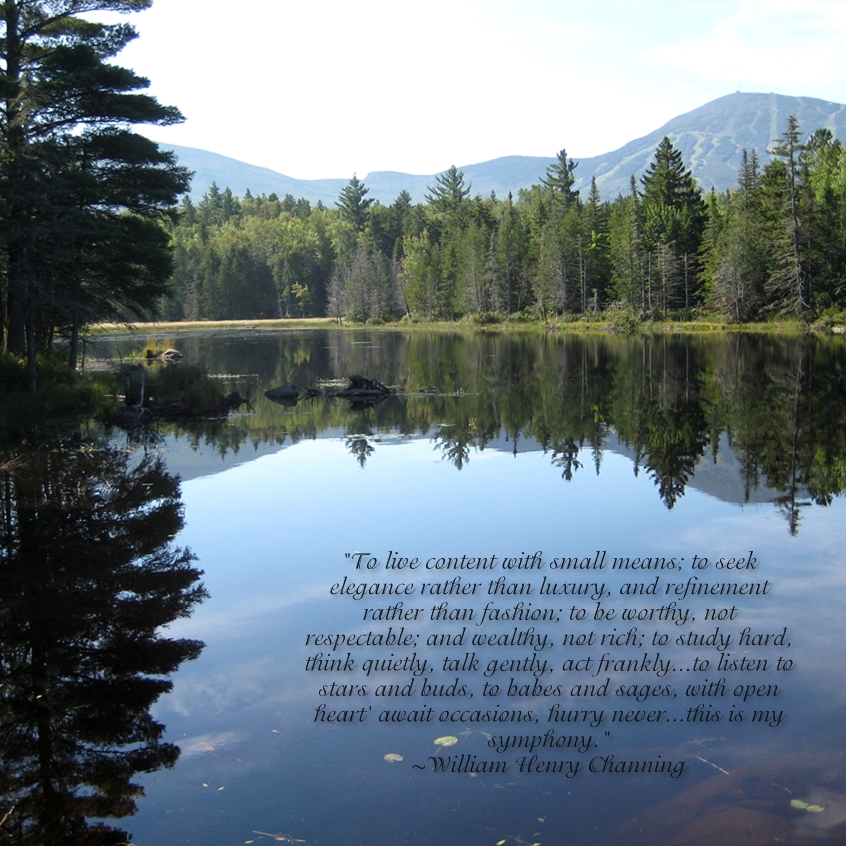
"To live content with small means; to seek elegance rather than luxury, and refinement rather than fashion; to be worthy, not respectable; and wealthy, not rich; to study hard, think quietly, talk gently, act frankly...to listen to stars and buds, to babes and sages, with open heart' await occasions, hurry never...this is my symphony." ~William Henry Channing

You could use this quote for a greeting card, on an album page with a full page photo behind it, on the back cover of a StoryBook or on a calendar.  Since many of you are working on calendars now this could be used on top of a full page bleed photo as shown in this example or you could use it as a full page in your calendar as shown in the other example.  A calendar full of 12 of your favorite quotes would be a unique gift for a friend or even for yourself.  Plus it is very easy to create.
This is from the Reminisce 12x12 Predesigned Pages.  All I did was type in the quote and fill the photo block with a piece of paper.  

10/07/2010

Creating a Calendar - Part 4

This video covers how to create dates for birthdays, anniversaries, etc. so you can easily add them to your calendar.  This technique is especially useful if you will be creating more than one calendar.  It is also useful if you create a calendar each year.  Please call me with any questions.

Creating a Calendar - Part 3

Today's short video will cover how to use a full photo as the entire background of your calendar; how to use a full photo on the top portion of your calendar; how to add a background to the calendar portion of your page; and how to use a page you created for another project in your calendar.  Please call me with any questions. 

If you would like to have the same calendar in both the 12x18 and the 8x12 size you just need to create the calendar once.  Create it in the 12x18 size and when you upload the calendar to the Creative Memories Digital Center you have the choice of downsizing and having it printed in the smaller size.  This means a lot less work for you and another gift checked off your list. 

Remember the calendars are on sale for 20% off through the end of October 2010.  How many calendars do you plan on making this year?

9/30/2010

Creating a Calendar Part 2

This video focuses on how to customize the calendar portion of your calendar.  These options are available only in StoryBook Creator 3.0 Plus.  The video will explain how to customize the calendar style as well as how to add special occassions to dates on your calendar. You can find a list of 2011 holidays on my website under My Files.  If you are interested in purchasing the pre-designed holidays you can find them here. Please call me with any questions.

Note from previous video - if you are using the Free basic version of StoryBook Creator you must choose one of the three pre-designed pages for each month.  You cannot use a May template in June.  That can only be done with StoryBook Creator Plus.  I'm sorry for the confusion.

9/27/2010

Creating a Calendar - Part 1

Over the next several posts I will be walking you through the steps to create a calendar in StoryBook Creator.  You can use either the basic version of StoryBook Creator, which is a free download, or the Plus version, which is $64.95.  Calendars come in two sizes - 12x18 and beginning Oct 1 8x12.  The 12x18 has a full size 12x12 perforated page on top that can be framed or added to a scrapbook. The 8x12 version has an 8x8 page.  The 12x18 calendar is $25.99 and the 8x12 is $20.99.  Both sizes will be on sale for 20% off from October 1 through October 31, 2010. 

Calendars also make great fundraisers.  By selling just 55 calendars you can make between $1,100 and $1,400 for your group or team.  I would work with you to create a completely custom page for each month with photos or artwork from your group.  Please contact me to learn how easy it is to make some serious money for your group.

This webinar explains the first steps - downloading the StoryBook program, downloading the page tempates, and adding photos.